Wednesday, May 9, 2012

Polly's Tech Tips


Tech Training Handout

May 9, 2012


www.wolframalpha.com

Great search engine. Better than Google because it gives you all information in one place.


www.qwiki.com
Gives you a “tour of info” when you do a search


Update your web browser to Google Chrome, there are so many benefits. Here are a few:

  • Save favorites to one computer and they will show up on another (which will means you don’t have to remember all these sites!)
  • Narrow down your searches (like recipes)
  • Peal off a tab
  • Conversions can go straight into the search bar
  • Click the microphone to “speak” your search (might be good for little ones)


Save websites to favorites, either put them in folders or add them to the favorites bar.

If you have a remote for your projector you can pause the screen. This will keep the current view on the screen, even if you change the view on the computer. This will allow you to do things on the computer while leaving work up for the students. You can also mute the screen.  This will blacken the screen without turning the projector off. This is helpful if you want to quickly get the students’ attention and it will not take time to warm back up, as soon as you hit mute again the screen will come back on.
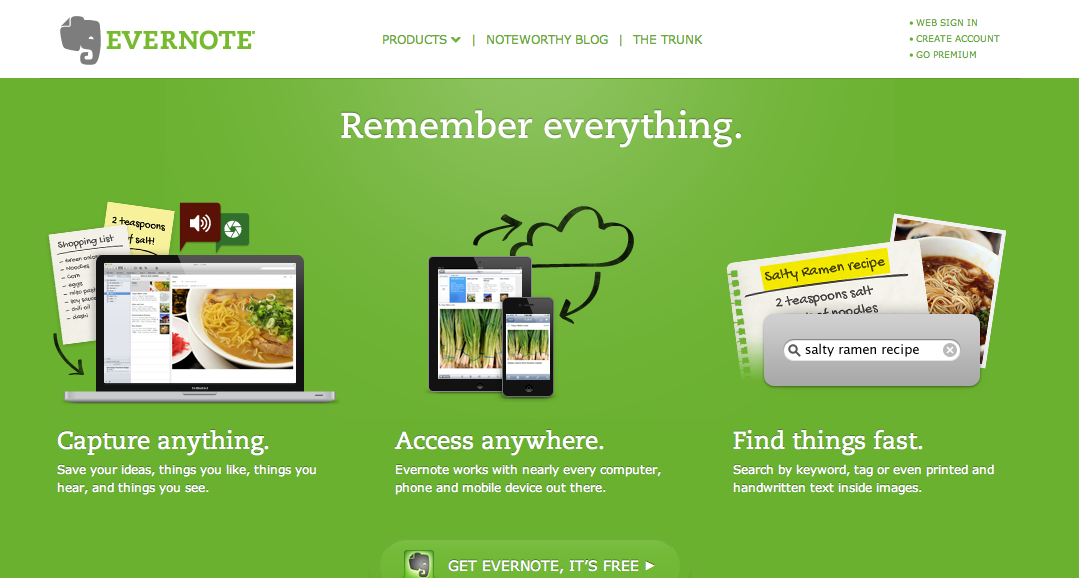


www.evernote.com
You can install the evernote app on phones and iPads. Then when you go to the site it will allow you to make notes, grocery lists, etc. They will automatically sync with your mobile devices and will be available on any computer.


www.pinterest.com
An app as well as a website. Follow people who you know will have things you are interested in, and then follow the people they follow. Pollygee, Tammy Worcester, etc. If we follow each other we can share ideas amongst the staff. There are lots of teachers on pinterest, and they are all sharing great ideas websites and apps.


www.ifaketext.com
Create a fake text message. Use it to get students attention, or have them create a text conversation as part of a project to show understanding of a historical event.

www.drawzit.com
A simple way students can draw and share. You can use it on the iPad, but it has flash so you have to use it through the app ROVER. You can have students draw and label parts of a flower, or heart, volcano etc., draw a picture to go with a story they wrote, draw a character or creature and then write a story to go with the picture, draw a scene that goes with their history book, make polygon people, etc.

Use www.google.com to search for sites according to reading level. Click Advanced search, then put your search in the search bar, use the “reading level” pull down menu and select desired reading level.

http://classtools.net/main_area/template_loader.php/?fruit_machine
Use this random name picker for a fun and fair way to pick students in your class. (If you have a list in word or excel, just copy and paste the list).

http://www.online-stopwatch.com

http://www.amblesideprimary.com/ambleweb/mentalmaths/clock.html - an interactive clock


http://www.kisstunes.com/

http://www.bgfl.org/bgfl/custom/resources_ftp/client_ftp/ks2/music/piano/guitar.htm
two options for turning your computer into a piano


www.exchange.smarttech.com
Do a search for a lesson you will be doing soon. You can combine slides from different
lesson you’ve downloaded. You will need to create an account but it’s free.
Find templates to make games.
Check out Teacher recommended resources and top download.

Smartboard Resources
Gallery – images as well as activities available, save into “my gallery” for easy future
access
Use Cloner and infinite cloner to make one duplicate of infinite number of duplicates
Lock images in place that you don’t want to move so the kids don’t move them
if students have trouble moving objects have them use their knuckle instead of their
fingertip

Sunday, May 6, 2012

My Weekend with Pinterest


I'm continuing to explore treasures from the MSET Conference, and spent a few hours this weekend setting up a board on Pinterest full of techie teacher ideas:

According to the website Hongkiat.com:  "Pinterest is a platform that allows you to showcase your interest and ideas via the simple act of pinning. This pinned collection of yours is easily shared to your network of followers or friends. They, in turn, can continue pinning materials from your board to theirs and spread the info further, all at the speed of a click.

 The potential behind this information transfer is enormous and now that the technology for it exists, academicians and educators should be quick to jump on the bandwagon and start pinning as well. To help this process along, onlineuniversities.com has created this infographic showing the ways educators can use Pinterest to collect, organize, collaborate and encourage active learning amongst students. Think of it like the bulletin board you always pass by at the school corridor – only more regularly updated and with plenty of space for just about everyone to put their stuff up and show to the whole school and beyond."


One of the many things I pinned this weekend was the infographic from this website:


I would not encourage our students to use Pinterest, as there is simply no way to manage privacy settings within the site, but after even a little bit of time this weekend, I do think it would be an amazing tool exploring ideas with networks of like-minded teachers.

Sunday, April 22, 2012

Treasures from the MSET Conference

Polly, Catherine and I had the opportunity to go to the MSET Conference last week.  As always, it was a treasure trove of great ideas for use of technology in the classroom.  I wanted to share a few resources we found with you all.

The first resource is an incredible blog titled: technology rocks. seriously.  If you are a Lower School teacher, I would recommend you bookmark it.  It is full of hundreds of resources to integrate technology into lessons - and also to use technology to make classroom management easier.  Be sure to consult the tag list to find resources that would work best for you:

http://www.technologyrocksseriously.com/

Tammy Wooster is always one of the most popular presenters at MSET.  She compiles exhaustive resources for using technology in the classroom... and creates excellent online reference sheets.   The list below will link you to her handouts for this year.  As we are beginning to introduce iPads into the Lower School, we were particularly interested in "Have an iPad - How do I Use it in the Classroom?"  For Upper School teachers who are increasingly using Google Docs, I think you would be interested in her resources on Google Spreadsheets and Forms (did you know you can create an online test that will correct instantly?) and Google Activities for Kids.
http://www.tammyworcester.com/TWHandouts/New_Handouts/Entries/2012/4/19_Common_Ground_2012.html
Catherine attended a session titled: Technology Power Hour.  The presenters used a program called Symbaloo to organize a comprehensive list of cool Web 2.0 tools that can be used in a variety of ways in the classroom.  Just click on each icon to link to a potential resource:

www.symbaloo/mix/technologypowerhour
A few of the resources we immediately thought could be used in HTS classrooms included:

Popplet - a graphic organizing tool

http://popplet.com/
Spelling City - a tool that turns weekly vocabulary lists into games and activities:
http://www.spellingcity.com/

Storybird - Storybirds are short, art-inspired stories you make to share, read, and print
If you get a chance to peruse some of the lists and have any questions about how to best use some of these ideas in your classrooms, let us know... we'd be happy to help.


Wednesday, February 1, 2012

Happy Digital Learning Day

Hi all,

To celebrate Digital Learning Day, I thought I'd share a link from Edutopia: 30 Great Technology Makeovers and Ideas.

http://www.edutopia.org/digital-learning-technology-resources


I was particularly intrigued by the section on "Teaching with New Media Tools."  The "Twenty Tidbits for New Teachers" is an excellent article - and if you'd like help with any of the suggested endeavors, from setting up a wiki or a blog for your classroom, or experimenting with other Web 2.0 tools, I'm happy to help you with it (see tidbit number 6 - get a mentor)  


Thursday, January 5, 2012

Word Clouds

One of my (two dozen or so) New Year's Resolutions is to blog more consistently on the tech blog this year.  This week, let's look at Word Clouds.  

I suggest three sites for creating Word Clouds: Wordle, ABCya and Tagul.
We've been using Word Clouds with our 6th and 8th graders this week.  Cheryl had been looking for an interesting way for the 8th graders to use words, or a quote to accompany the masks they had designed before the break.  I suggested they use Wordle to make a word cloud with their yearbook quotes.  The sixth graders also used Wordle with Dr. Martin Luther King quotes this week.

Wordle is free and offers a dizzying array of font, color and layout options.  The link to Wordle is http://www.wordle.net/create

For the 6th grade project I strung together the words in the Martin Luther King quotes using "~", so the words stay together in sentences:

If you do not link the words together, a cloud is created, as in this sample: 

The idea is that those words that appear the most in a block of text will be represented most in the cloud.

A couple of "lessons learned" for using Wordle:
  • Once you have all your text in the box, you will want to copy the whole block of text - just in case something goes wrong, you won't have to retype the whole block of text again.  
  • If you press the "back" button, you will lose everything, so again, be sure you have it copied.
  • You cannot save Wordle documents to your computer, so they must be printed right away.  If you need to save a copy, a screen shot is a good idea.

A word cloud option for our younger students is: abcya.com:


This is designed for students in 2nd -5th grades, and while it has fewer font, color and design options, is much easier to navigate - and you can save your work, which is not possible with Wordle. Here are a couple of samples, with thanks to Dr. Seuss:


And a third option, for older students, is Tagul.    On the Knewton blog, I discovered that: "tag clouds are similar to the “word clouds” that many news sites use to show the trending topics; they can scrape a website and pull all the terms that are used, and weight them by how many times they’re used. Tag clouds have one advantage over word clouds, though; they are all separate links to more information. There are several programs that can be used to create these tag clouds — I recommend Tagul because it’s easy to use and free for the first 20 clouds!"

I recommend the Knewton blog entry: Four Ways to Use Tag Clouds in Classroom lessons - I love the ideas, including Valentine's Day vocabulary lists, and ideas for President's Day, Black History month and teaching current events.

I also like The Top 10 Ways to Use Wordle at School This is a great list of ideas, including creating personal narratives, classroom polls, and student profiles.

Enjoy!  MB

Wednesday, December 14, 2011

NoodleBib Tutorials - Notes from Beverly


I know many students and faculty are using NoodleTools and NoodleBib.  (Reminder:  NoodleBib is the citation maker and NoodleTools has many other things for students to use when writing.)  If you are not using it, I hope you will.  Now that all students & faculty have an HTS gmail account it is especially easy to use.  The new tutorials below will be helpful as will the previous ones that are on the NoodleBib homepage and linked below.

All upper school students have had an introduction and I am happy to follow up in Technology class with 7th or 8th if needed and I am sure Mary Beth would be happy to with other grades. I can also do one-on-one with faculty and staff if you ask me.

Questions?  I will be happy to answer them.

Thanks,

Beverly


New tutorials about monitoring and assessing student work

A new series of four tutorials for teachers and administrators on how to set up a drop box for students to share their projects, how to view the projects, and give feedback about their projects. Links will take you directly to the screencasts.

*          Sharing (1/4): Creating an Assignment Drop Box
http://www.noodletools.com/noodlebib/tutorials/share_parta/             (4:34minutes)

*          Sharing (2/4): Viewing shared projects
http://www.noodletools.com/noodlebib/tutorials/share_partb/%20%20       (2:48 minutes)
           
*          Sharing (3/4): Viewing students citations, notecards and outline
http://www.noodletools.com/noodlebib/tutorials/share_partc/     (1:29 minutes)
           
*          Sharing (4/4): Providing feedback to students
http://www.noodletools.com/noodlebib/tutorials/share_partd/               (1:28 minutes)

All above tutorials are narrated and close captioned.

See also a tutorial http://www.noodletools.com/noodlebib/tutorials/share/
created for students (1:42 minutes) on how to share their projects with their teacher.

Check out other screencasts in the Tutorials area.     http://www.noodletools.com/helpdesk/index.php?action=downloads#category-3

Blog post link: http://www.noodletools.com/blog/archives/525

Thursday, September 29, 2011

Have your students discovered Quizlet?


This is a great tool for students who need to study vocabulary - for English, or for any other subject.  Students can create their own flashcard set, then use Quizlet to test themselves.  Quizlet will even take the bank of information and create a test.  This is a wonderful resource to introduce students to before they enter High School - my own kids use it all the time to review their High School subjects.

I'm happy to help set up a sample for your class, or give you a tutorial...

MB


Saturday, August 20, 2011

Welcome to Your New Homework Page

We have created step-by-step instructions for you to learn how to access, update and save homework pages.   A copy of this document can be found on the faculty pages of the new website, if you'd like to print a copy for yourself.


Friday, August 19, 2011

More Great Guides from Edutopia

In addition to subscribing to this blog, I believe you should all take the time to subscribe to Edutopia.  It is truly a goldmine of great ideas for educators.  I also love that George Lucas has used his millions of Star Wars dollars to establish this foundation to support innovation in education. 

Please take a moment to download - and read - the two latest guides - and keep in mind I'd love to help with teaching any of the new media ideas you're intrigued by!
http://www.edutopia.org/classroom-management-resource-guide

http://www.edutopia.org/ten-tips-teaching-new-media