Monday, October 8, 2012

A Pair of Amazing Guides for iPad Users - and a Prezi


Earlier this week, I received a pair of super-cool guides in my inbox that I'd like to share:

First, Edutopia published a booklet titled:  Mobile Devices for Learning: What You Need to Know... Getting kids engaged with learning, focused on working smarter and ready for the future.  This guide is jam-packed with ideas - especially for our iPad users.

In his "GeekDad" Blog for Wired, Daniel Donohoo sums it up this way:  "Along with the usual app recommendations, the guide offers some analysis that looks at the positives, but also the challenges, of using mobile devices to support learning. It presents a wide range of diverse resources for teachers and parents to access as they undertake a journey to using technology to support learning. The whole process can also be overwhelming, so the guide doesn’t feel like it has excessive information, but instead acts as a launching pad for those interested in exploring how these devices can be used with students both inside and outside the classroom."
Plus, it is free. Of course, free these days means signing up to the Edutopia site, but if you do you’ll find the complete guide at http://www.edutopia.org/mobile-learning. 


I found a couple of ideas from the guide to be particularly useful, especially the following links to help to find new Apps:


  • I Education Apps Review - IEar.org - Resources are organized by grade and subject by a community of educators and app developers.
  • Appititc  - Appitic.com - A directory of apps for learning by Apple distinguished educators
  • Teachers with Apps - teacherswithapps.com - Two teachers write easy-to-read reviews on educational apps for educators and parents.


Arriving in my inbox soon after was a huge guide from Common Sense Media called "Bring Learning to Life."  Divided by subject and again by learning level, it offers hundreds of ideas for Apps, online games and other resources.

According to their website, "no matter what your kids like, you'll find media here to spark their imagination and cement knowledge.  Discover inventive apps for kids struggling with addition, fluency games for advanced readers, websites to help with social skills, and more."   We do have a number of the recommended Apps available on our Lower School iPads, but we will be looking at the list carefully over the next few weeks to add to our offerings.  If you'd like to peruse the list and add your own suggestions, here is the link:

http://www.commonsensemedia.org/guide/back-to-school-guide


Then, when I was planning our 7th Grade class for tomorrow I stumbled across this amazing Prezi titled: 60 Educational Apps in 60 Minutes. Yet another resource to explore when searching for Apps.

Monday, October 1, 2012

Blog Spotlight: Free Technology For Teachers


During one of our workshops this summer, we spoke about the wealth of information available to teachers in the world of blogging.  I follow a number of blogs... in the world of technology, things are changing constantly, and the techie blogs help me keep up on the changes.  Having cool blog updates in my inbox is like having a teaspoon of Continuing Ed every day.

One of my all-time favorite blogs is called "Free Technology for Teachers."  Richard Byrne lives in a tiny little town in the woods in Maine, but this week he reached the milestone of 50,000 subscribers to his blog.  A well-deserved honor, I would say. I am constantly learning about new resources from him.

He has included a number of wonderful resources this fall.  I'd like to highlight a pair of them below, and encourage you to add to his number of subscribers and follow him as well:

From Richard:

12 Awesome EdTech Tools for 2012-2013 is designed to share what I think is a selection of free tools that can be used in almost every K-12 setting. I intentionally kept this document short because the intended audience is teachers who are new(ish) to using technology in their classrooms and I didn't want to create something that would be overwhelming. You'll also notice that I left out iOS and Android apps. Those will be featured in future documents.

Please feel free to download, print, and distribute this in your school.
12 Awesome EdTech Tools for 2012-2013


At Holy Trinity, we'd like to eventually move toward using Google Drive with our students, but at the beginning of this busy year, it keeps falling to the bottom of the to-do list.  If you'd like to tinker with Google Drive and Docs while waiting for the tech team to get to the bottom of their collective to-do lists, here is an excellent resource for you:
Google Drive and Docs for Teachers 2012

Thursday, September 27, 2012

Anchor Charts!


Notes from Katie Khanijoun - September 2012

·        For me… it started with Pinterest… www.pinterest.com

·        What is an Anchor Chart?

o   Students brainstorm, teacher guides and scribes
o   Helps to “anchor” information in a student’s mind
(anchors new and on-going learning)   (holds our thinking in a visual place)
o   A chart you create WITH the students
------Made during the lesson (you can have examples to follow or have some parts prepared ahead of time).  You can “fix it up” after the lesson so it looks better
o   Promotes literacy and encourages independence
o   Visual reminder of strategies
o   Focuses on ONE strategy or concept or procedure
o   Excellent reference tool for students
o   Students helped to created itàmore likely to use it

·        Important:

o   Students should reference them, so should youàkeep them relevant
o   Can be interactiveà, have students use strategy and show it with a sticky note
o   Change them up when they aren’t needed anymore, take pictures of them so you can reference them for next year, also a good way to make them available for the rest of the year to students if you keep a copy of the chart in a binder

·        Also Helpful for:

Tutors, principal, parents and other teachers who walk into your roomàimmediately see what they students are learning

·        Awesome websites and resources:
http://www.cornerstoneliteracy.org/newsletter-archive/anchor-charts


Monday, September 17, 2012

2012 Election Resources


The Election is just 49 days away...

I thought I'd share a handful of techie Election 2012 resources for you to explore:

The New York Times Learning Network is designed with 6th to 12th graders in mind.  They have recently posted a section with teaching ideas and resources:


... and a section with a number of great free web sites for teaching about the 2012 election:


Scholastic:
The Scholastic website is designed with younger kids in mind, and includes a number of games, videos and other resources:

 
Discovery Ed:
Holy Trinity School has a subscription to Discovery Ed, and among the resources is a weekly 3-minute video update on the election:

Remember, if you have not yet signed up for your personal HTS Discovery Ed account, our account number is: 13FF-53EE
 
 
BrainPop also has an extensive Election Resources section, with quizzes, games, and lots of short videos from our friends Tim and Moby:


Remember, our login is dtarantino, and our password is seashell.

Do you have other favorite Election resources?  If so, share them below in the comments section:

Monday, September 3, 2012

Passwords and Email and Scantron and such...


Hello all - a few techie notes to begin the second week of school.

Passwords

Thanks for your patience as we have tried to work out network logins for all our Upper School students.  We should be in really good shape as we begin this week, but if you find you are in a lab with a child locked out, please text M, and she will trouble-shoot the problem.

Each US student will have a password page by the end of the week (see below).  We have asked they keep this in their binders as a reference, as they have so very many passwords to remember.  We will also have copies on hand.
A few notes about Email.  

  • Each US student has an HTS Email account, and we have told them this is the only account they should be using at school  (the ability to G-chat has been disabled, among other perks.)
  • This Gmail account easily links to Google docs or Google drive.  If you are new to this and interested in using it with your students, let one of the Tech Nerds know, and we can help you out.  It is a handy way to manage and edit papers with your kids.
  • It should be very easy for you to Email your students, as they are all in the directory.
  • We have told the students that they may not Email during class time without teacher permission. 
  • We have also told them that if they use the Email inappropriately, they will lose all network privileges at HTS for some amount of time.
Scantron

Scantron testing begins for Upper School students this week, and Lower School students next week, and will likely take most of our technology classes over the next three weeks.  This means that much of the "Tech 101" stuff we generally introduce at the beginning of the year is not happening for a while.   If you need one of us to help introduce some techie element to one of your classes over the next few weeks  (say, saving documents to the correct drive)  just let us know. 

Monday, August 27, 2012

Lower School MiniLab Schedule 2012-13

Hi all,

Below, you will find the new LS MiniLab schedule.  If you would like to sign up for time in the lab beyond your tech classes, Catherine Miller will keep the schedule on the door, and you are welcome to sign up. 

Monday, August 20, 2012

Tuesday, August 14, 2012

Welcome Back to School!

A Few Notes for HTS Tools 101


Following is the outline Chris Clark will be working from on Tuesday afternoon.  We'll add more how-to notes if needed later in the week.

Overview of HTS website - www.htsdc.org
  • frequently used links
  • calendars
  • student directory (has not been updated for 2012-2013 school year yet though)
  • faculty page --> password:  stignatius
  • schedules, class lists, how-to's, forms, etc. etc. can be found here, but is a little under construction at the moment
Network Drives
  • H drive for personal stuff (only you and a few admins have access)
  • N drive for NetDocs (all faculty/staff has access)
  • shared documents
  • report cards
  • T drive for SAT files (all faculty/staff has access)
  • documents regarding students with special needs
  • generally NOT a good idea to share things on the C drive or "My Documents" folder

    • webmail version
    • sync with Microsoft office (requires an admin to set up for you)
    • add to iOS (iPhone/iPad) or Android or home email program (Mail) like a regular Gmail account (willing to help if needed) 
    • you may email a group of people:


    Cornerstone - our online database/ online gradebook (used by upper school only)

    • entering grades
    • household viewable setting --> YES for everybody now, may change to NO for Lower School pending administrative approva
    • printing class lists
    Wordpress - for teacher webpages
    • where students can find your page
    • updating current page
      • changing color of text
      • making a link to a webpage
      • uploading & making a link to a file
    • weekly task of archiving****
      • saving current week to new draft
      • renaming the newly created copy
      • going back to the current week's page and editing that page (should be page with just your name in the web address)
      • linking newly created last week's page to HW archive page

    SMART Notebook - 
    • not too much detail here because of other workshops
    • posting PDFs of SMART Notebook files to website

    Google Calendar
    • adding a test date, long-term project due date, special event
    • can add more special events to "Grade Level Public Events" or "HTS Main" and it will automatically display on the HTS homepage
    • excellent way to communicate to students, parents, colleagues, and principal

    Use the technology!
    • it's transparent (website, Cornerstone, Google calendar) - for your students and their parents
      • more questions, confusion, and misunderstandings if you are not transparent
      • less questions, confusion, and misunderstandings if you are transparent
    • allows students and parents to know how well they are doing (Cornerstone)
    • eliminates many (but not all) student errors of doing the wrong page, wrong problems, etc. (website)
    • allows students to review material on their own time if needed (SMART Notebook, website)
    • keeps a record in case you ever needed to look back (website, Cornerstone)
    • communicates much easier than email
      • more questions, confusion, and misunderstandings if you are not transparent
      • less questions, confusion, and misunderstandings if you are transparent
    technology blog maintained by Mary Beth Morell (http://htstechnologyblog.blogspot.com)
    subscribe to get weekly updates

    technology wiki maintained by Polly Sileo 

    happy to install software you may wish to use…please just ask
    generally only users with administrator privileges can install new software on computers
    Christopher Clark
    Charlie Hennessy
    Mary Beth Morell
    Polly Sileo

    Sunday, August 12, 2012

    Notes for the Strategies for Searching, Researching and Citing Sources

    Following are some notes and resources from Monday afternoon's session.

    1. The Library is the place to start when guiding students to do research - and most resources can be accessed from home.


    The library web page is under Academics on the home page.  Open the HTS Library page.  

    The link can be found here.  

    Information for students and parents is given as well as links to encyclopedias and databases from home.  Explore, learn and have fun!


    We encourage you to take advantage of Britannica Encyclopedias, Grolier Suite of Encyclopedias, SIRS Discoverer® and NoodleBib Citation Maker from home.  The school subscribes so our students can find credible information without ads or popups.  Britannica and Groliers have dictionaries and atlases and give MLA citations.  All need to have cookies enabled.  To use or sign up go to the Holy Trinity Home Page – HTS Local – HTS Library Main Page and choose Library Resources from Home.  Follow the directions .


    Click on the Britannica link. The username is:  holytrinityes and the password is Ktwelve.
    Choose a Level to Explore, Search, and Learn:  Pre-K – 2 Learning Zone, Elementary, Middle or High School or all may be searched.
    Image Quest: Access more than two million rights-cleared images from over 50 of the best collections in the world.


    Click the link that takes you to the enrollment page.  Answer the four questions and submit.
    Patrons 13 and younger may need to wait for parental notification but patrons 14 and older get a username and password delivered to their e-mail box immediately with further instructions and tips for access.

    We subscribe to six:  Encyclopedia Americana, Grolier Multimedia, New Book of Knowledge, New Book of Popular Science, Lands and People, and America the Beautiful.  When Grolier opens you will be in what they call their Passport section.  Grolier Online for Kids, aimed at younger students, can also be accessed from here, but all encyclopedias can be accessed from both.  A dictionary, atlas and Associated Press Daily News Section written for kids are also included.


    Click on the SIRS link.  The User Name is Titans123 and the Password is 20007.  (Think mascot and HTS Zip code.)

    Searching for a specific topic is done in a search box or by clicking on buttons for general information.  Sources returned come from reference materials, periodicals, newspapers, web sites, Comptons Encyclopedia, World Almanac for Kids, American Heritage Dictionary, Roget’s II: New Thesaurus and photographs.  When using the citation information choose MLA format.


    Each of our Upper School students should have an account with NoodleTools, which is helps them organize and properly cite their sources.

    NoodleTools has a number of online tutorials to help you understand how to best use this website.  Some of the tutorials were mentioned in a previous blog entry, which can be found here.

    Off campus a user who enters NoodleBib remotely will be prompted to log in to the subscription when he/she clicks "Create a Personal ID" on the login screen.  Use the name and password below for access and then create your Personal ID as above or if you already have one choose login.

    Username: citations
    Password: titans1112

    Or if you have Microsoft Office 2007 on the References Tab are options for inserting Citations, Endnotes, Footnotes and creating Bibliographic citations.
    Holy Trinity uses MLA style for citations. 

    A Few Notes on using Destiny to find books in the HTS Library:


    Searching and Researching on the Web - A few go-to resources.

    If you would like to brush up on your Internet Searching Skills as you embark on a research project with your somewhat tech-savvy students, some of the best resources come from the website Common Sense Media, and Google Education:


    I particularly like the resource to help students figure out how to identify high quality sites:

    (click here for link to the handout)


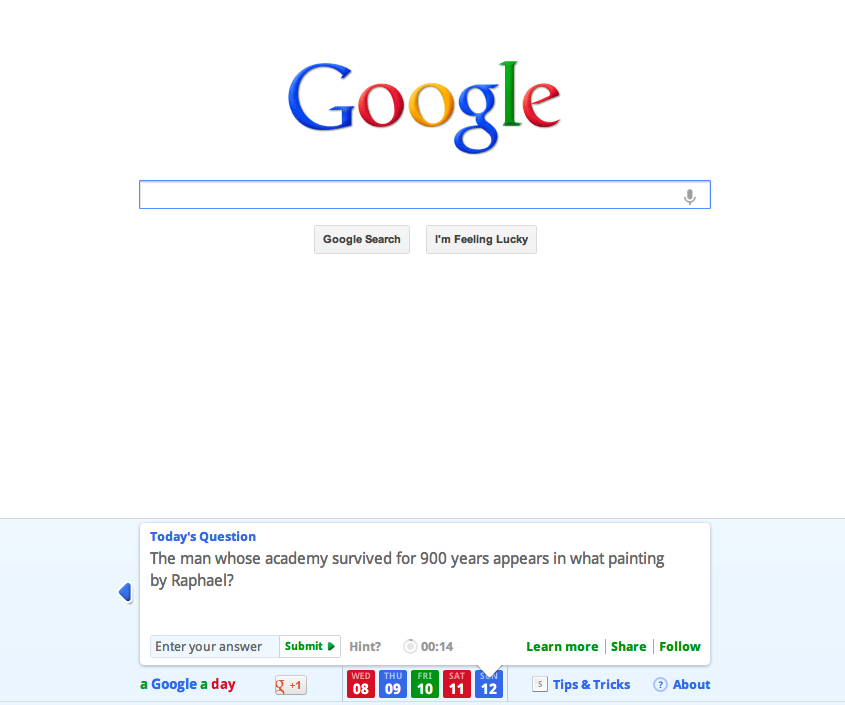
    One way to practice your own search strategies is with a Google A Day Challenge:


    Go ahead and try it!  It's a bit addicting :)

    Google has a number of wonderful posters, with simple search tips:


    And a few notes on Wikipedia.  I covered this topic in a previous blog entry, which can be found here:


    Any other questions?  We are always here to help...


    Monday, August 6, 2012

    Some Great Web 2.0 Tools for HTS Teachers